
Best Free Speechify Alternatives: 4 Ways to Have Text Read Aloud for Free

Published: · Updated:
Want a famous voice rather than a reader? The Voicestars AI voice catalogue reads typed text in celebrity and character voices.
Speechify is a popular reading app, but its free plan is limited to robotic voices and slower speeds, so many readers look for free alternatives.
This guide compares Speechify Free with four free options and gives five steps to listen to articles, PDFs and documents without paying.
We reviewed Speechify’s pricing page, NaturalReader, Apple’s Speak Screen guide and the Balabolka page on 11 November 2026.
Our verdict
Speechify’s free plan gives 10 robotic voices at up to 1.5x. Free alternatives: Speak Screen on iPhone (built in), Read aloud in Microsoft Edge (natural voices for web pages and PDFs), NaturalReader’s free tier, and Balabolka on Windows to export audio. Use the reader built into your device first.
- 01 Phone Speak Screen
- 02 Browser Edge Read aloud
- 03 Desktop files Balabolka
Speechify Free versus free alternatives
Free parts on the verification date.
| Option | Where | Free part | Limit |
|---|---|---|---|
| Speechify Free | Apps and web | 10 robotic voices, speeds up to 1.5x | Natural voices on Premium ($29/month or $139/year). |
| iPhone Speak Screen | iPhone and iPad | Built in, unlimited | Listening only, no export. |
| Microsoft Edge Read aloud | Edge browser | Built in, natural voices | Web pages and PDFs in Edge. |
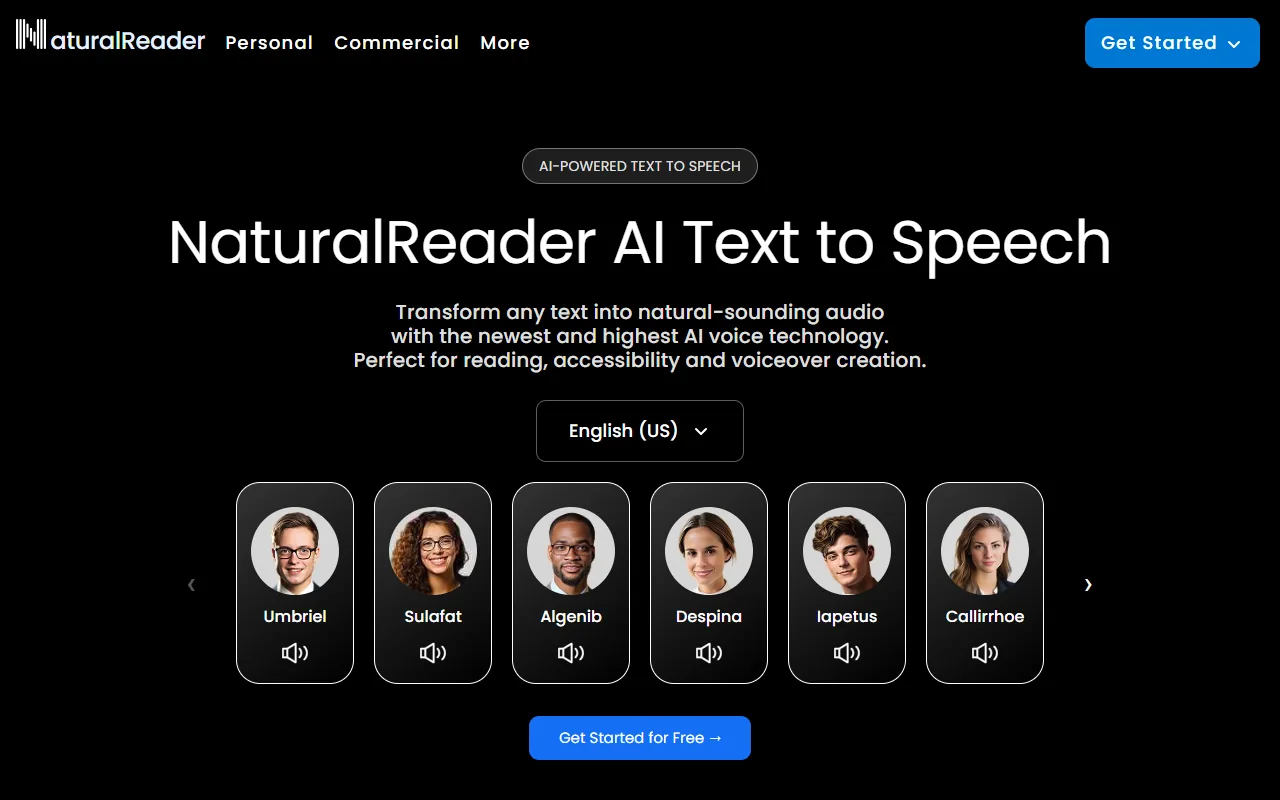
| NaturalReader | Web and apps | Free tier | Check current voice limits. |
| Balabolka | Windows | Free | Uses installed system voices; exports audio. |
Voicestars is not a reading app; it reads typed text in celebrity and character voices for clips you download.
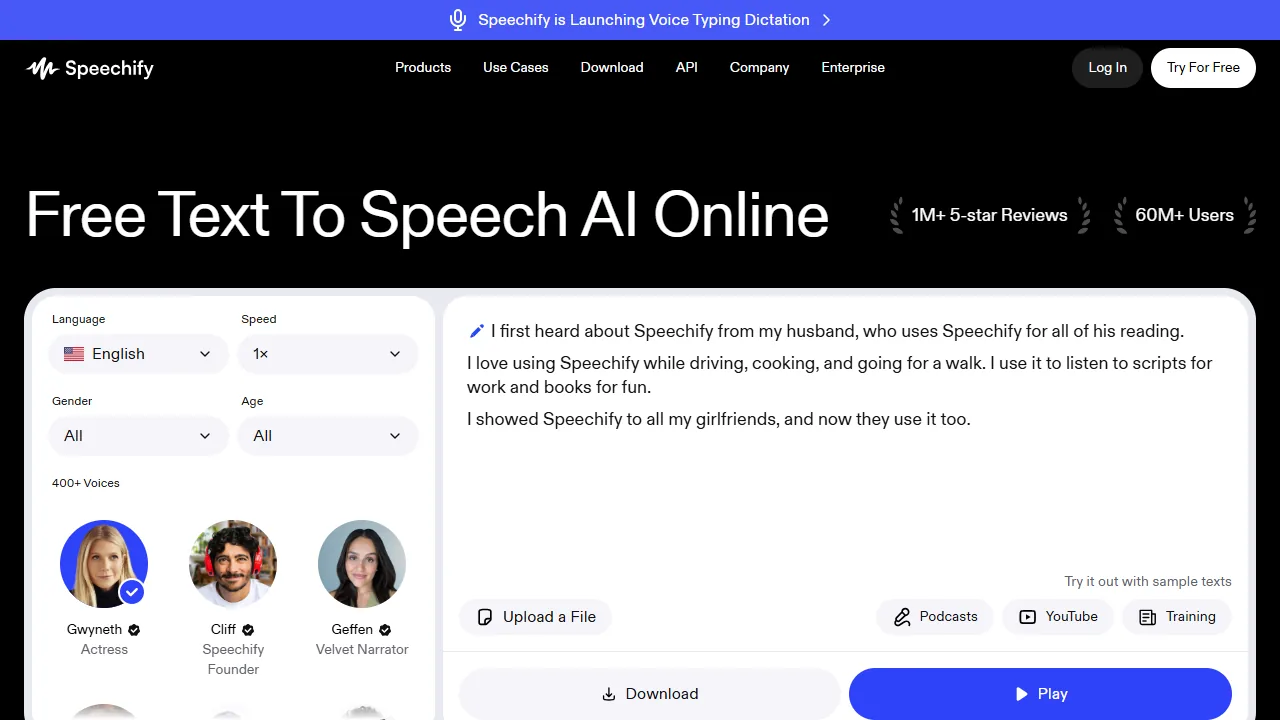
Sources: Speechify pricing · Apple iPhone User Guide: Hear iPhone speak the screen · NaturalReader official site
Set up a free Speechify alternative in 5 steps
Steps 2 to 4 cover the main devices.
- Decide where you listen most: phone, browser or desktop documents. The best free alternative is usually the one already built into that device.
- On iPhone, turn on Speak Screen in Settings > Accessibility > Read & Speak, then swipe down with two fingers to hear any page.
- In Edge, open the page or PDF and choose Read aloud; pick a natural voice and speed.
- For documents and audio files on Windows, install Balabolka and select the best installed voice.
- Keep Speechify Free only if you like its app; upgrade only when you need natural voices or faster speeds.
Example: a daily listening routine
An original routine with free tools.
Morning: Edge Read aloud on news articles
Commute: iPhone Speak Screen on saved pages
Evening: Balabolka MP3 of a long report
What to check
- Each device uses its built-in reader.
- Long documents are exported to audio.
- Speed is set per voice.
Why built-in readers are enough for most people
Phones and browsers now include natural-sounding voices at no cost, which covers most reading needs.
Speechify’s value is in its app experience and premium voices; if you mainly need listening, the free built-ins compete well.
For producing audio files, a desktop reader that exports MP3 fills the gap.
On iPhone, follow our guide to getting Siri to read text.
Fix common free reader problems
| Symptom | Likely cause | What to do |
|---|---|---|
| Robotic voice | Default or offline voice | Choose a natural/online voice. |
| Cannot export audio | Listening-only reader | Use Balabolka or a TTS tool with downloads. |
| Reader skips text | Image-based PDF | Run OCR or use the original document. |
Turn your script into a famous voice
When a neutral narrator is not enough, use the Text-to-Speech tab on a voice page.
- Search the catalogue and pick a voice.
- Go to the Text-to-Speech tab and drop in your lines.
- Generate the clip, download it and mark it as AI.
Comparing apps? Read our text-to-speech app guide.
Where each option falls short
How we compared the tools
Tested and written by Big Jeezy, music producer, on 11 November 2026, using Voicestars and the tools named in this guide.
- Speechify’s pricing page, NaturalReader, Apple’s Speak Screen guide and the Balabolka page reviewed 11 November 2026; screenshots captured that day.
- Examples are original.
- Voicestars publishes this guide; it does not sell a reading app.
Screenshots and examples come from these sessions. Voicestars publishes this guide and sells the voice tools it mentions.
Report a correction to Voicestars Editorial with the page, date, a short reproducible example and the observed result. Avoid sending private recordings. See our editorial policy.
FAQ
Is Speechify free?
There is a free plan with 10 robotic voices and speeds up to 1.5x, limited to text-to-speech features. Natural voices and extras are on Premium, listed at $29 per month or $139 per year.
What is the best free Speechify alternative?
Built-in readers: Speak Screen on iPhone, Read aloud in Edge, and Balabolka on Windows for exports.
Is there a free Speechify alternative for PDFs?
Microsoft Edge reads PDFs aloud for free, with natural voices.
Can a free alternative export MP3?
Balabolka can save speech as audio files using the voices installed on Windows.
Which alternative has the most natural voices for free?
Edge Read aloud offers natural online voices at no cost; quality varies by language.
Sources
Checked on 11 November 2026.
Check the current plans on Speechify’s pricing page, and for Windows exports, Balabolka.


