
Talk It! Text to Speech: How to Use It in 5 Steps and 3 Modern Alternatives

Published: · Updated:
Need a more natural or character voice than Talk It! offers? Search the Voicestars AI voice catalogue and type your text on any voice page.
Talk It! is a free Windows program that reads your text aloud with a handful of quirky voices. Many people remember it from school computers, and “talkit text to speech” is still searched every month.
This guide shows how to use Talk It! in five steps and compares three modern alternatives for natural voices, documents and downloadable audio.
We reviewed the Talk It! listings on SourceForge and Malavida on 11 November 2026. We did not install the program.
Turn your text into a natural AI voice
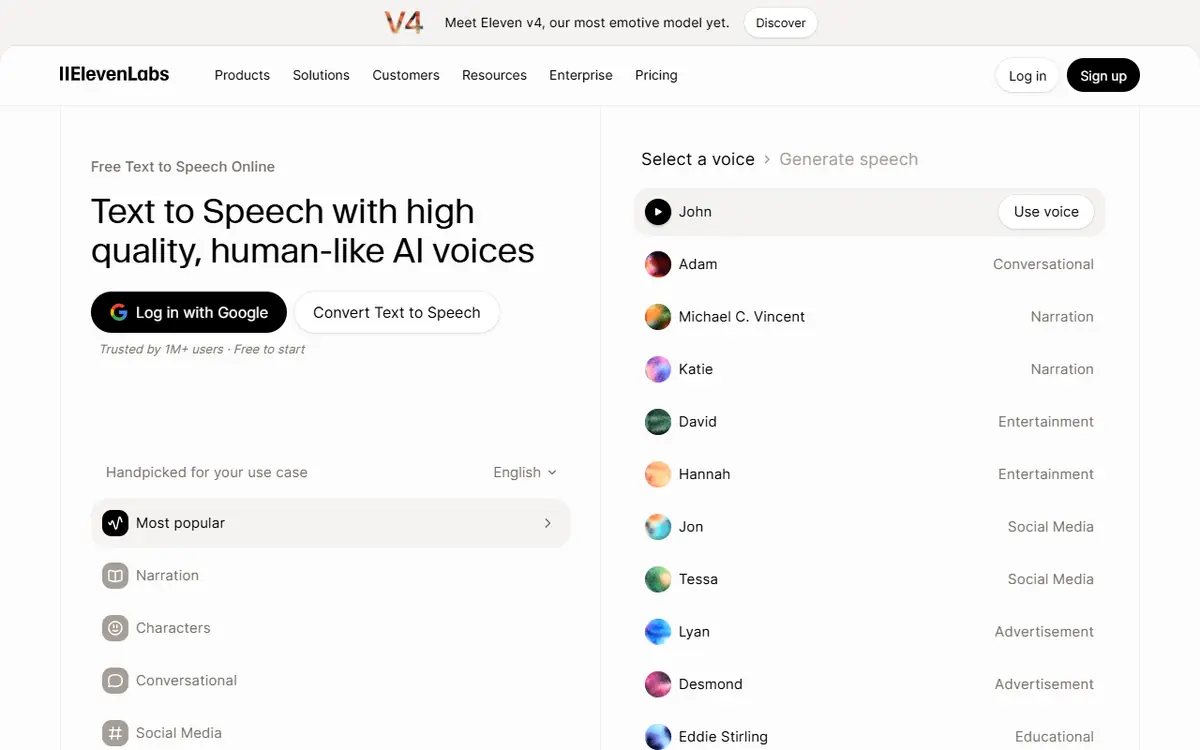
A modern alternative to Talk It!: pick a voice and type your text.
Quick answer
Talk It! is a free, basic Windows text-to-speech program with preset voices in English and Spanish. To use it, install it from a reputable site, paste your text, pick a voice, adjust speed and pitch, and press play. For natural voices or audio files, use Windows’ built-in voices, Balabolka for exports, or an AI voice page with a Text-to-Speech tab.
- 01 Listen Talk It! or Windows voices
- 02 Export Balabolka saves audio files
- 03 Natural voice AI voice page with text to speech
Original editorial workflow diagram; not a product screenshot or test result.
Keep Talk It! or switch?
Pick by what you need from the voice. This compares uses, not measured quality.
| Tool | What it is | Good for | Check before you start |
|---|---|---|---|
| Talk It! | Free, old-style Windows program with preset voices | Fun voices, children, quick read-back | Basic voices; English and Spanish only. |
| Windows built-in voices | Narrator and the voices installed with Windows | Reading text aloud without installing anything | Mainly for listening, not for exporting audio. |
| Balabolka | Free Windows reader that uses installed system voices | Reading documents and saving audio files | Quality depends on the voices installed. |
| Voicestars voice pages | AI voices with a Text-to-Speech tab | Character, celebrity and singer voices | Credits apply; label imitation voices as AI. |
Malavida describes Talk It! as a basic tool designed more for children than for serious text-to-speech work.
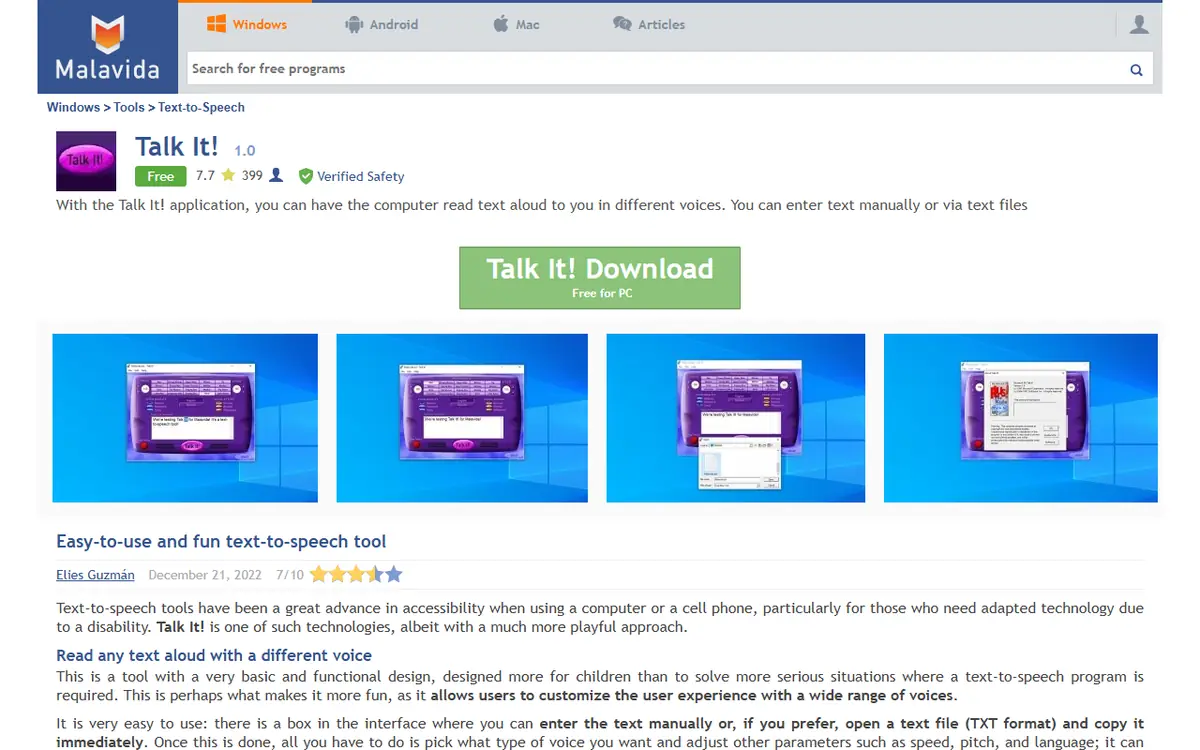
Sources: SourceForge: Talk It! listing · Malavida: Talk It! review and download page · Balabolka official page (Cross+A)
Use Talk It! in 5 steps
Steps 1 to 4 use Talk It!; step 5 shows when to switch.
- Download Talk It! only from a reputable software site and scan the installer. It is an old, free Windows program, so avoid unofficial bundles that add extra software.
- Open the program and type or paste your text into the box, or open a plain text file. Keep sentences short; old synthesis engines stumble on long, unpunctuated lines.
- Pick a voice. Talk It! offers preset voices ranging from realistic to playful, such as a child or an alien, according to its SourceForge listing. Choose English or Spanish to match the text.
- Adjust speed and pitch, then press play. Spell out numbers and abbreviations if they are read strangely.
- If you need audio files or natural voices, move to a modern tool: Balabolka can save speech as audio files using installed voices, and AI voice pages create natural or character voices you can download.
Example: make an old engine read clearly
An original sentence rewritten for an older text-to-speech engine.
Before: "Mtg @ 3:30pm w/ Dr. K re: Q4 #s"

After: "Meeting at three thirty p.m. with Doctor K, about the fourth-quarter numbers."
What to check
- Symbols and abbreviations are written out.
- Numbers are spelled as spoken.
- Commas create natural pauses.

What Talk It! is good at, and where it stops
SourceForge lists Talk It! as a free Windows program that reads English or Spanish text with 20 preset voices, from realistic to fanciful styles.
That simplicity is its charm for children and quick read-back, but the voices are clearly synthetic and the program has few options.
Modern alternatives differ by goal: Balabolka reads documents and saves audio with your installed voices, while AI voice pages produce natural, character or celebrity-style voices.
For a simple online reader that downloads MP3 files, see our TTSMP3 guide.
Fix common Talk It! problems
| Symptom | Likely cause | What to do |
|---|---|---|
| Program will not start | Old software on a new system | Try compatibility mode or use an alternative. |
| Words read strangely | Numbers or abbreviations | Write them as words. |
| Robotic sound | Old synthesis engine | Use a modern AI voice for natural speech. |
| No audio file | Playback-only program | Use Balabolka or an online TTS with downloads. |
Create a natural voice clip with Voicestars
Use a voice page’s Text-to-Speech tab when you want a downloadable, expressive voice.
- Search the catalogue for a voice style.
- Open the Text-to-Speech tab and paste your text.
- Generate, listen and download; label imitation voices as AI.
Comparing engines for a bigger project? Read our AI voice synthesizer guide.
What this guide does and does not establish
Talk It! details come from download listings on the verification date. We did not install or test the program.
Alternatives are compared by purpose, not by a listening test.
Evidence, method and responsibility
Research and interface checks: 11 November 2026. Maintained by Voicestars Editorial under the Nolan Vale pen name. This role is not a claim of an independent qualification or an endorsement by the cited organizations.
- Talk It! listings on SourceForge and Malavida and the Balabolka official page reviewed 11 November 2026; the Malavida screenshot was captured that day.
- Keyword research: DataForSEO Google keyword suggestions, United States, English, collected 11 November 2026 (talkit text to speech; few related queries were returned).
- The before/after sentence is an original example. No program was installed.
- Voicestars publishes this guide and offers the AI voice pages mentioned.
We distinguish provider documentation, observed interface behavior and proposed exercises. Screenshots are our actual browser captures; a screenshot of a form does not prove audio quality. No invented measurements, reviewer credentials or user ratings are used.
Report a correction to Voicestars Editorial with the page, date, a short reproducible example and the observed result. Avoid sending private recordings. See our editorial policy.
Frequently asked questions
What is Talk It! text to speech?
A free, simple Windows program that reads typed text aloud in English or Spanish with a set of preset voices, some realistic and some playful.
Is Talk It! safe to download?
Use a reputable software site, scan the installer and decline any bundled extras. The program is old and receives few updates.
Does Talk It! work on Windows 11?
Download sites still list it for Windows, but old programs can behave unpredictably on new systems. Test it, and use a modern alternative if it fails.
Can Talk It! save audio files?
It is designed mainly for playback. For audio files, use a reader that exports audio, such as Balabolka, or an online text-to-speech tool with downloads.
Is TalkIt the same as TalkNet?
No. TalkNet is an AI speech-synthesis model used by fan communities for character voices; Talk It! is an older Windows program with preset synthetic voices.
What is the best Talk It! alternative?
For listening, the voices built into Windows. For audio files, Balabolka. For natural, character or celebrity-style voices, an AI text-to-speech page.
Sources and verification date
Consulted 11 November 2026. Provider features, plans and laws can change. Product documentation is distinguished from the original exercises proposed in this guide.
Details of the program are on its SourceForge listing; for a free reader that exports audio, see the Balabolka official page.


