
How to Use TTS on Discord in 5 Steps (Plus TTS Bots)

Published: · Updated:
Discord’s built-in TTS uses a plain system voice. For a server intro or meme clip with personality, try the Voicestars character voices to convert a line you record into a cartoon, game or anime-style voice.
Discord has a built-in text-to-speech feature: type /tts and your message is read aloud to everyone who has playback enabled. It is great for accessibility and jokes, and annoying when it is misconfigured.
This guide shows how to turn it on in five steps, how to control what you hear, how to fix it when it stops working and when a TTS bot is the better choice for voice channels.
Menu names come from Discord’s support documentation and recent setup guides; Discord moves options between versions, so the closest match may differ slightly in your app.
Make a character voice clip for Discord
Type the line, convert it on the voice page and post the clip in your server.
Quick answer
To use TTS on Discord, enable /tts playback in User Settings > Accessibility, make sure the channel allows the Send Text-to-Speech Messages permission, then type /tts followed by your message. Control what is read in Notifications > Text-to-Speech (all channels, current channel or never). Built-in TTS plays on each listener’s device; to speak into a voice channel, servers use a TTS bot.
- 01 Your playback User Settings > Accessibility: allow /tts
- 02 Channel permission Send Text-to-Speech Messages for your role
- 03 Notifications Read all channels, current channel or never
Original editorial workflow diagram; not a product screenshot or test result.
Built-in /tts or a Discord TTS bot?
Both read text aloud, but in different places. Choose by where your listeners are.
| Need | Built-in Discord TTS | Third-party TTS bot |
|---|---|---|
| Where speech plays | On the devices of people who enabled TTS playback | In a voice channel, through the bot |
| Who hears it | Members in the text channel with playback on | Everyone connected to the voice channel |
| Voice choice | Your system’s or browser’s built-in voice | Depends on the bot; some offer several voices and languages |
| Set-up | User settings plus a channel permission | A server admin invites the bot and grants permissions |
| Main risk | Spam if everyone can use /tts | Bot permissions and privacy; review what it can access |
We do not recommend a specific bot: check its permissions, privacy policy and maintenance status before inviting it.
Sources: Discord Support: Text-to-Speech
Use TTS on Discord in 5 steps
Steps 1 and 3 are for everyone; step 2 needs a server admin if the permission is missing.
- Turn on /tts playback in your own settings. Open User Settings, go to Accessibility and enable the option that allows playback and usage of the /tts command (older versions placed it under Text & Images). Without it you can neither hear nor send TTS messages.
- Check the channel permission. Server admins control /tts with the Send Text-to-Speech Messages permission, set for a role or a specific channel. If your messages are posted silently, ask an admin whether this permission is enabled for you.
- Send a TTS message by typing /tts followed by your text in a text channel, then press Enter. Members who have /tts playback enabled hear it read aloud once, using their device’s voice.
- Choose how much TTS you want to hear. In Notifications, the Text-to-Speech setting can read messages for all channels, only for the current selected channel or never; in Accessibility you can adjust the text-to-speech rate.
- Turn it off when it gets noisy. Disable /tts playback in Accessibility, set notification TTS to Never, or ask admins to remove the Send Text-to-Speech Messages permission from roles that abuse it.

Example: write a /tts message people can understand
TTS reads literally. This original example shows a chat-style message rewritten so the voice reads it clearly.
Before: /tts brb 5 min, GG ez lmao

After: /tts Be right back in five minutes. Good game, everyone.
What to check
- Abbreviations are written as words.
- Numbers read naturally.
- The message is short enough not to annoy the channel.
How Discord TTS actually works
Built-in TTS does not send audio. Discord sends your text, and each listener’s app reads it with the speech engine on their device. That is why the same message can sound different on Windows, macOS or in a browser.
Notification TTS is separate from the /tts command. When set to read all channels, Discord reads incoming messages aloud even if nobody typed /tts, which is useful for accessibility but overwhelming on busy servers.
Voice channels are different again: built-in /tts is not broadcast into a voice call as a participant. Servers that want spoken messages in voice chat add a TTS bot that joins the call.
Streaming as well? Our Twitch TTS alert guide covers moderation and routing for live audiences.
Discord TTS not working? Fix it here
| Symptom | Likely cause | What to do |
|---|---|---|
| You hear nothing when others use /tts | /tts playback disabled | Enable it in User Settings > Accessibility. |
| Your /tts message posts as plain text | Missing Send Text-to-Speech Messages permission | Ask an admin to allow it for your role or channel. |
| Every message is read aloud | Notification TTS set to all channels | Set Notifications > Text-to-Speech to Never or current channel. |
| Works on PC, not on phone | Platform support differs | Use the desktop app or a supported browser. |
Beyond robotic TTS: a character voice for your server
For a server intro, a meme sound or a stream alert, a recorded line converted into a character voice is more expressive than the default system voice.
- Record the line yourself, or type it in the Text-to-Speech tab of a character voice page.
- Pick a character voice and listen to its demo.
- Convert, export and add the clip to your soundboard or alerts.
To play a prepared clip from a soundboard instead, make a file first with our ttsMP3 guide.
What this guide does and does not establish
Discord’s menus change between versions; we describe setting names from its documentation and recent guides, and did not inspect every client version ourselves.
We did not test third-party TTS bots, mobile behaviour across devices or speech engines on every operating system.
Evidence, method and responsibility
Research and interface checks: 10 November 2026. Maintained by Voicestars Editorial under the Nolan Vale pen name. This role is not a claim of an independent qualification or an endorsement by the cited organizations.
- Discord Support’s text-to-speech article and recent third-party setup guides reviewed 10 November 2026; the Discord app itself was not tested; mobile support claims from third parties conflicted and are reported as unverified.
- Keyword research: DataForSEO Google keyword suggestions, United States, English, collected 10 November 2026 (discord tts, tts bot discord, tts on discord, discord tts not working, how to use tts on discord).
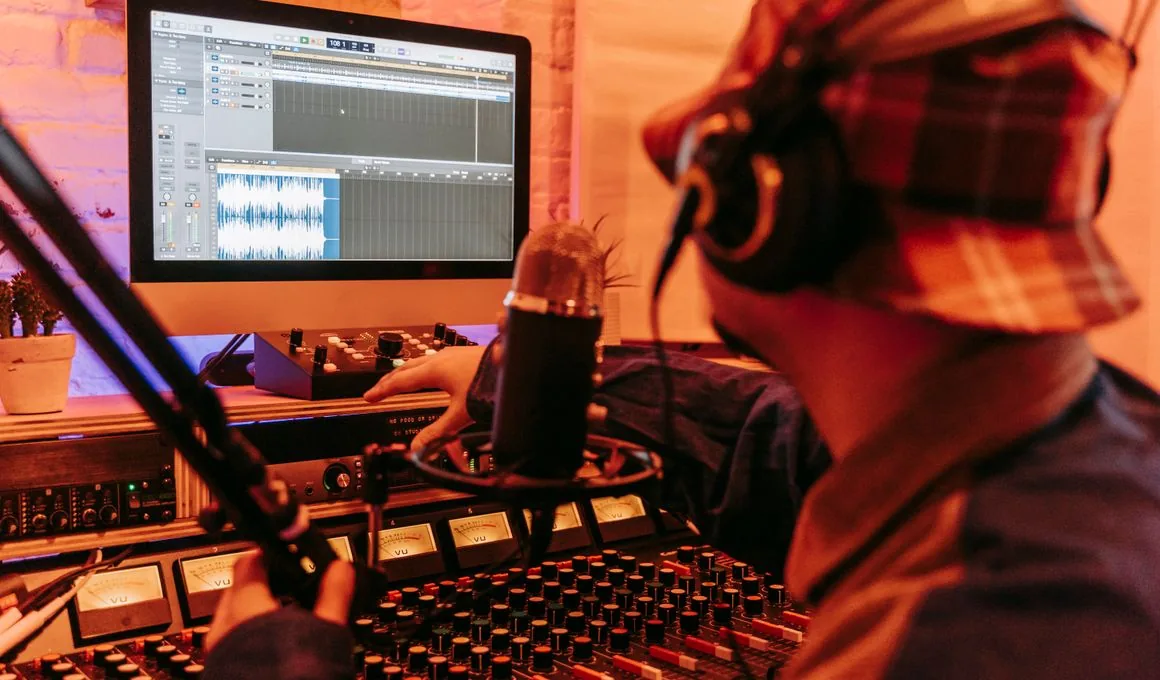
- The message rewrite is an original example. The credited photo does not show Discord.
- Voicestars publishes this guide; its character voices are suggested for recorded clips, not as a Discord bot.
We distinguish provider documentation, observed interface behavior and proposed exercises. Screenshots are our actual browser captures; a screenshot of a form does not prove audio quality. No invented measurements, reviewer credentials or user ratings are used.
Report a correction to Voicestars Editorial with the page, date, a short reproducible example and the observed result. Avoid sending private recordings. See our editorial policy.
Frequently asked questions
How do I enable TTS on Discord?
Enable /tts playback in User Settings > Accessibility, make sure the channel grants Send Text-to-Speech Messages, then type /tts followed by your message.
Why is Discord TTS not working?
The usual causes are /tts playback disabled in your settings, a missing Send Text-to-Speech Messages permission, notification TTS set to Never, low system volume or using a device where Discord TTS is not supported.
Does Discord TTS work on mobile?
Discord TTS is documented for the desktop app and supported browsers. Reports about mobile support are inconsistent, so test it on your phone before relying on it.
Can I change the Discord TTS voice?
Built-in TTS uses the voice provided by your operating system or browser, so changing that system voice changes what you hear. For other voices in a voice channel, servers use third-party TTS bots.
How do TTS bots work on Discord?
A TTS bot joins a voice channel and reads messages aloud for everyone connected. An admin invites it and grants permissions; review what the bot can read and store before adding it.
How do I stop people spamming /tts?
Remove the Send Text-to-Speech Messages permission from @everyone and grant it only to trusted roles or specific channels.
Sources and verification date
Consulted 10 November 2026. Provider features, plans and laws can change. Product documentation is distinguished from the original exercises proposed in this guide.
For Discord’s own description of each option, see Discord Support’s text-to-speech article; it is the first place to check when a menu has moved.


